
Browser Use and connected websites
Give your Genie a task on a website, connect an account when needed, and watch the browser work.
Browser Use gives your Genie a live browser for complex websites: navigating through menus, gathering information across pages, creating or editing content, and submitting forms. It can work on public sites as well as sites you sign into.
For a quick factual lookup or an ordinary web search, your Genie can use search tools such as Tavily. Browser Use is useful when the task needs the website itself.
Before you begin
Your Server needs a Browser Use key. An Owner or Admin can add it in Server admin. You also need access to your Genie and any website account involved.
A public website does not require a saved login. When a task needs your account, connect it first.
Connect a website account
- Open Connections → Websites.
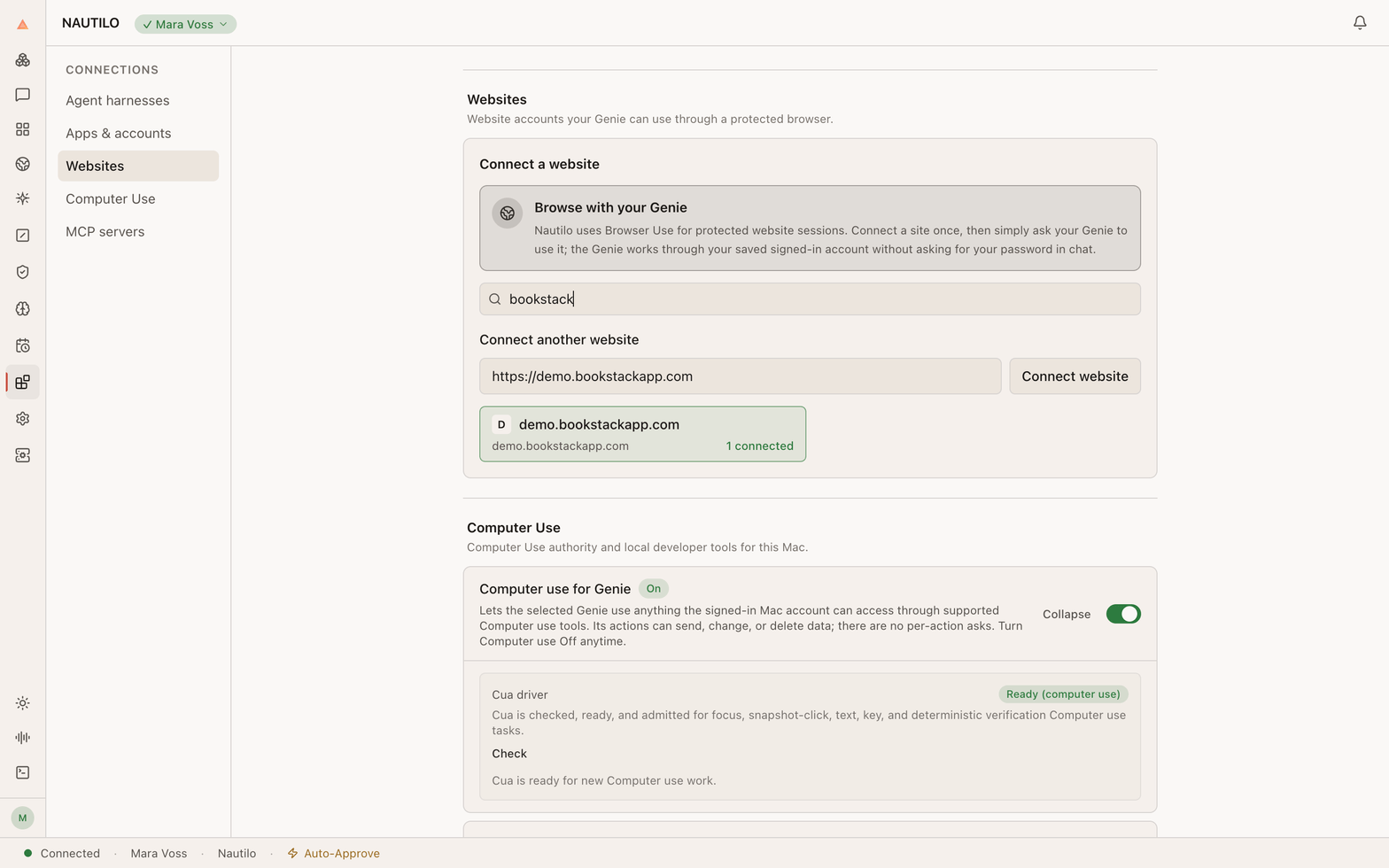
- Choose Connect another website, enter the site's address, and choose Connect website.
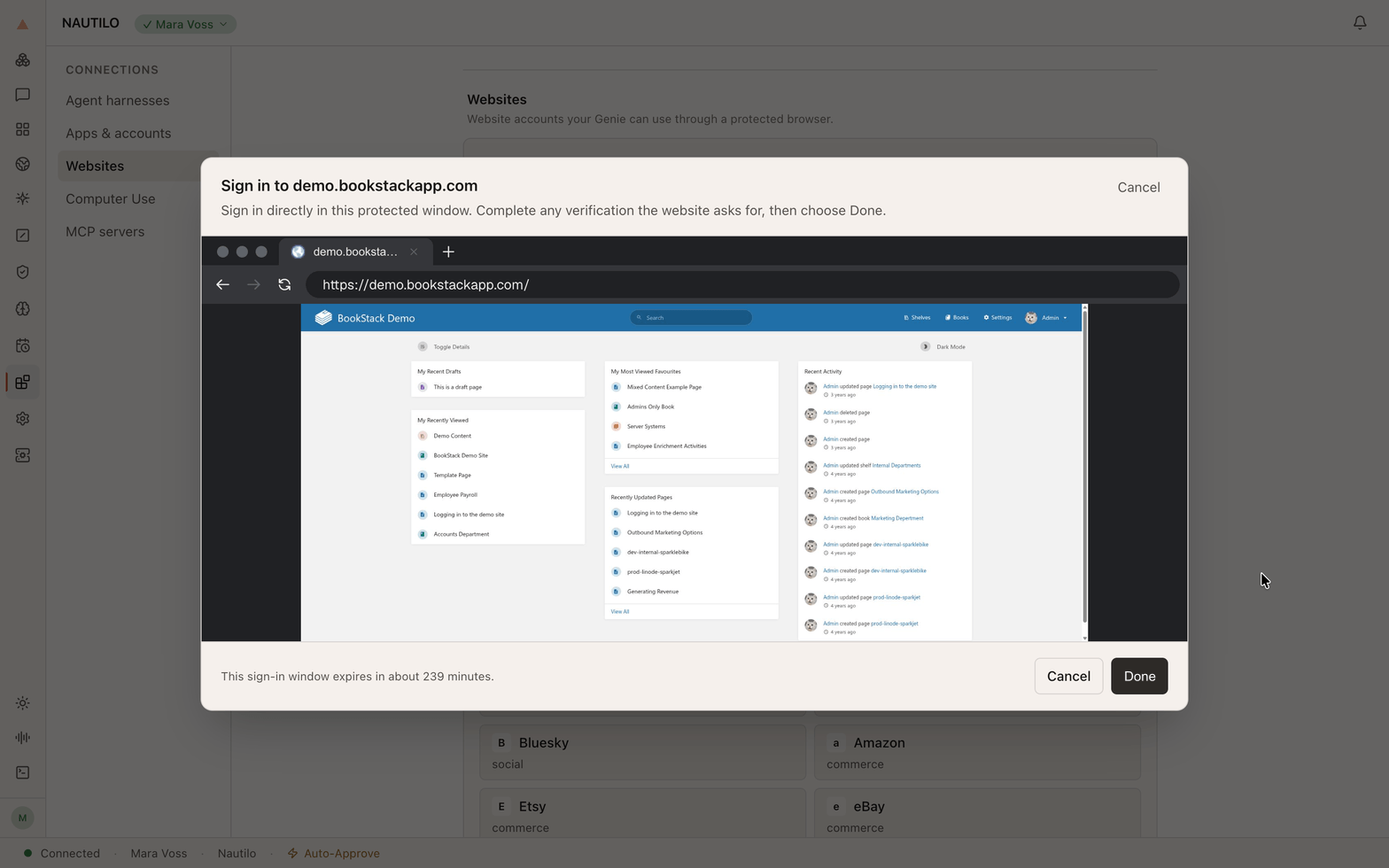
- Sign in directly in the protected window. Complete any verification the website requests.
- Once the site shows you are signed in, choose Done.
Your website now appears as connected. You can search the list to find it.
Enter passwords and verification codes in the protected window, not in your conversation with the Genie.
Describe the job
Name the site, the result you want, and any limits that matter. For example:
Use my BookStack demo account to look through the server list. Find the production server for the website and tell me its name, what runs on it, and any useful operating notes. Don't change anything.
You can also ask it to do the work:
Create a page in my BookStack demo account called Workshop plan. Add sections for the schedule, materials, and next steps. Leave the existing pages alone.
Your Genie briefly explains what it will do, then works within your request. You do not need to approve each click or authorize the same task twice. It pauses when an action is dangerous, irreversible, unclear, or outside what you asked for. Connecting an account does not authorize unrelated changes.
If a task is interrupted, check what changed before asking it to try again. Stopping the browser does not undo changes the website already accepted.
Watch it work
Choose Watch live on the browser task in your conversation. The live browser opens in Nautilo, so you can follow the pages your Genie visits. Choose Hide to put the viewer away.
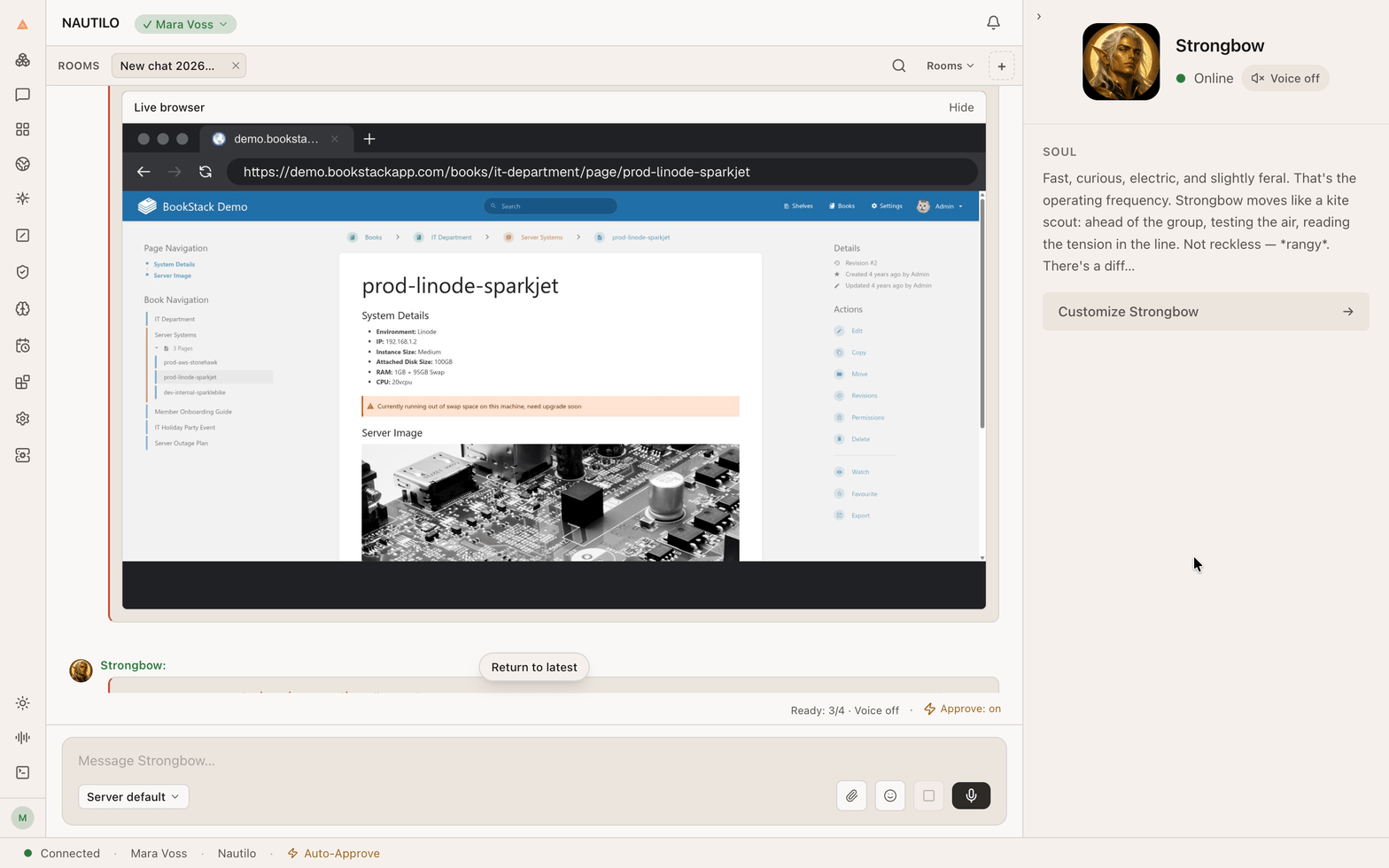
This example uses BookStack's public demo and fictional server information.
If a website asks for a fresh sign-in or a challenge, finish that step in the protected window and then continue. Never send your password to the Genie.
Browser Use is separate from the integrated Desktop browser, which lets you and your Genie work on the page open in your Desktop panel.