
Connect agent harnesses
Connect Codex, Claude Code, or Hermes on your desktop so your Genie can delegate work to them.
Your Genie can delegate a task to an agent running on your computer, then bring the result back into your conversation. These local agents are called agent harnesses in Connections.
Open Connections → Agent harnesses in Nautilo Desktop. Set up the agent you want to use; you do not need all three. Keep that Desktop connected to your Nautilo Server while it works.
| Agent | Where you connect it | What to look for |
|---|---|---|
| Codex | Connect an account from its Nautilo card | A signed-in default account and availability for new Codex work |
| Claude Code | Sign in through Claude Code on the same computer | Ready, with a model selected and the connection enabled |
| Hermes via ACP | Configure the compatible Hermes installation on the same computer | Ready, with the connection enabled |
These connections use accounts and software on your desktop. Adding a model provider key in Server admin does not complete this setup.
Connect Codex
- Expand Codex and turn on its switch.
- Follow the Runtime section. If Nautilo finds a compatible installation, choose Use this Codex when offered. Otherwise choose Install Codex or Install reviewed runtime, then wait for installation and activation to finish. The managed runtime is installed separately from Nautilo.
- Choose Connect Codex account, then follow the account row's sign-in action. Complete sign-in in the browser opened by Nautilo.
- Return to Nautilo. Confirm the account is signed in and selected under Default account. The first connected account becomes the default; switching to a later account is your choice.
- Check Permissions and confirm that Genie availability says Available for new Codex work.
Passwords and verification codes belong in the provider's sign-in flow, never in a message to your Genie. For provider-side authentication help, see OpenAI's sign-in documentation.
Choose permissions deliberately
The card offers Codex default, Ask for changes, and Full access. Full access allows Codex to run commands and modify files without Nautilo approval or sandboxing; Nautilo asks you to confirm that choice.
Changing the default account or permissions affects new Codex work. It does not switch the account or permissions of a task already running.
Use an account's More menu to rename it, refresh usage, or remove it. Removing an account asks for confirmation. If an account needs a fresh login, use the sign-in action on that account rather than creating duplicates.
Connect Claude Code
If the card says Claude Code not found, install it on the computer running Nautilo Desktop. Installing it on the Server will not make it available to this Desktop.
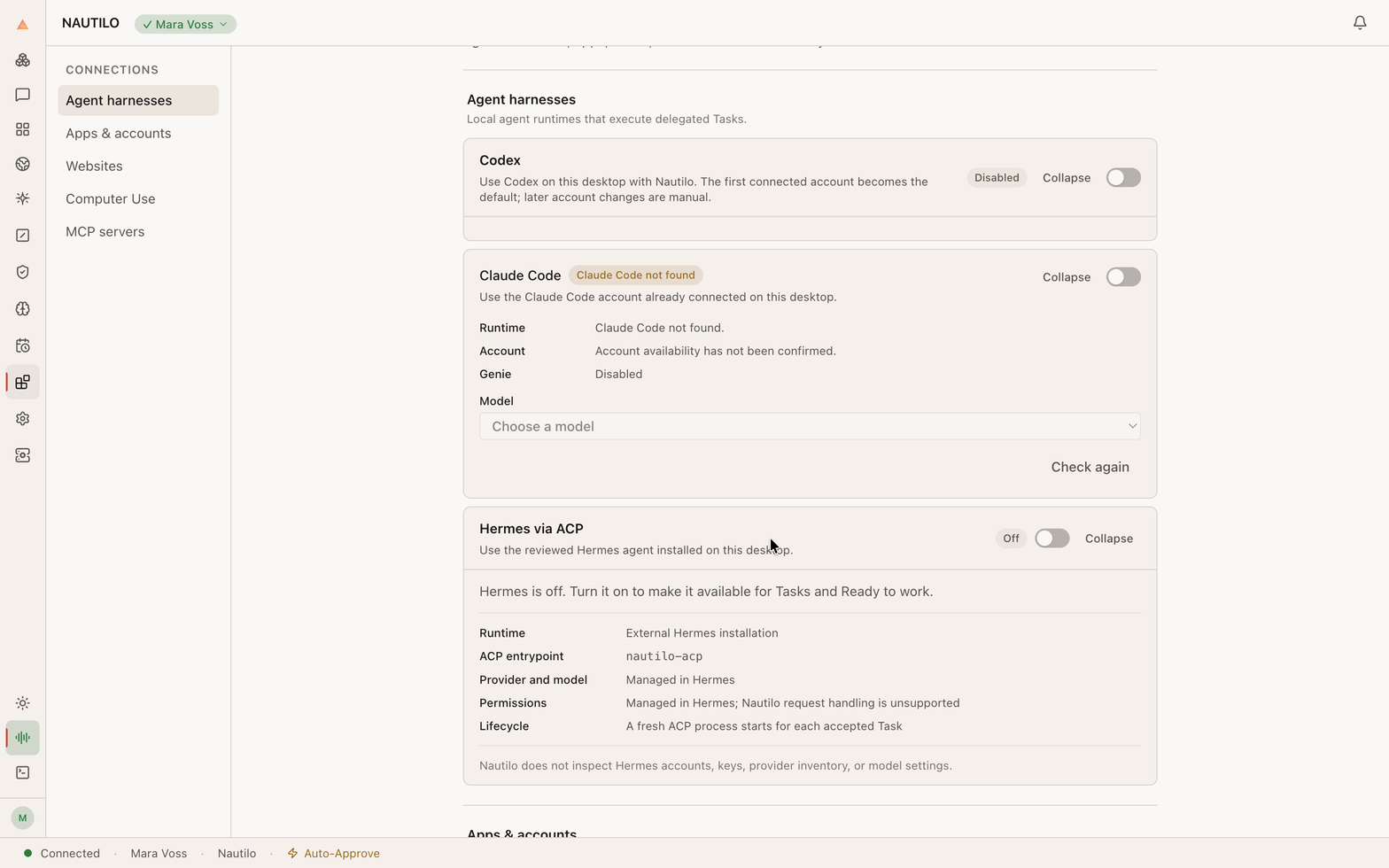
The missing-runtime state appears before Claude Code is installed.
-
Install Claude Code and sign in through Claude Code on the computer running Nautilo Desktop. Use a runtime supported by your Nautilo release: Desktop 0.14.54 uses the reviewed Claude Code 2.1.235 runtime. On macOS, the official installer can select that version:
curl -fsSL https://claude.ai/install.sh | bash -s -- 2.1.235
claude
Complete sign-in in Claude Code. If you already have a working installation, check compatibility before changing its version.
-
Return to Connections → Agent harnesses and expand Claude Code.
-
Choose Check again. Nautilo checks the local runtime, account, and available models.
-
Turn on the connection and choose a Model from the list.
-
Look for Ready and Ready for Claude Tasks in the runtime details.
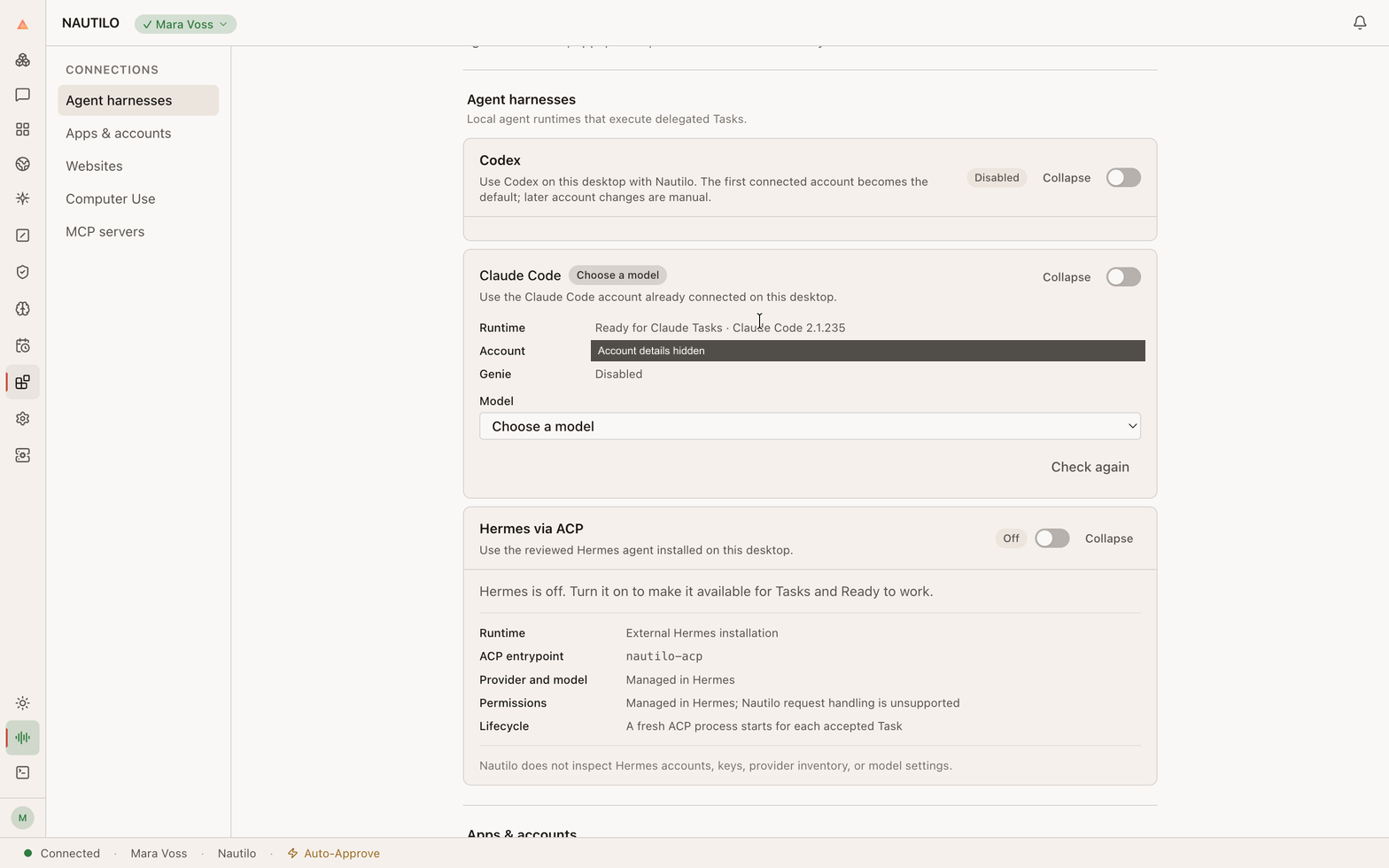
After installation, the runtime is available. This example still needs a model selection and the connection switch turned on. Account details are hidden.
Account detected means Nautilo can see the account, but that runtime is not yet approved for task execution by this Nautilo build. Account discovery alone does not mean Claude Tasks are ready. After updating Claude Code or Nautilo, choose Check again. Claude Code can update itself, so check the version again if a previously ready connection changes to Account detected.
If the card says Connect in Claude Code, complete login there first. If models are unavailable, check the provider setup in Claude Code and refresh the card. Nautilo does not ask you to paste Claude credentials into this page.
Connect Hermes via ACP
ACP is the protocol Nautilo uses to give work to Hermes. Hermes manages its own provider, model, login, and permissions.
- Set up a Hermes installation compatible with your Nautilo release on the
same computer. A generic Hermes installation is not enough: Nautilo needs
its reviewed
nautilo-acpentrypoint. - Complete provider and model setup in Hermes itself.
- Open Connections → Agent harnesses → Hermes via ACP and turn it on.
- Choose Check again and wait for Ready.
If it says Not installed, Incompatible, or Sign-in needed, follow the message in the card. Installing an arbitrary newer version does not guarantee compatibility. Each accepted task starts a fresh ACP process.
Nautilo does not inspect Hermes account credentials or manage its permission prompts. Complete that setup in Hermes before handing it work.
Give your Genie a first task
In a private conversation with your own Genie, name the agent, the project, and the result you want. Replace this example folder with one on your computer:
Use Codex to inspect the project in ~/Projects/sample-app. Explain how to run it and suggest one small improvement. Don't change any files yet.
You can ask for Claude Code or Hermes instead. Follow the task's progress in the conversation and review its returned result. A ready connection is the setup check; a completed task confirms that it can do useful work.
For work involving your repositories or remote machines, also set up GitHub CLI or SSH access for Genie.
When an agent is unavailable
| What you see | What to do |
|---|---|
| Desktop unavailable, Starting, or Reconnecting | Open the paired Nautilo Desktop, reconnect it to the Server, and check again. |
| Runtime missing or incompatible | Follow that agent's runtime instructions. For Codex, use the managed installation offered by the card. |
| Signed out or sign-in needed | Finish login in the indicated provider flow, then refresh. |
| Claude account detected, but tasks unavailable | Use a runtime supported for execution by your Nautilo build; refresh after updating. |
| A task fails after setup | Read the task's failure message. Check its project folder, account access, and agent readiness before retrying. |
Turn off an agent's switch when you want to stop offering it for new work. Use the running task's own controls to manage work already in progress.