
Add your API keys
Add API keys in Server admin after installation, or supply them in a private TOML file during deployment.
Your API keys connect Nautilo to the services your Genies use. Keep them in your password manager, and set spending limits with each provider. A chat-app subscription is not necessarily an API account with credit.
Looking for Gmail, Drive, Docs, or Sheets? Follow Set up Google Workspace. That connection uses Google OAuth, not the Google Gemini API key on this page.
You have two setup options:
- After installation: sign in as an Owner or Admin, open Server admin → API Keys, and add keys in the app. The Server Guide's API Keys button opens the same page. No TOML file is needed.
- During deployment: optionally supply keys in a private TOML file. Use this when you prefer file-based or automated setup.
Add or change keys after setup
You can install and claim your Server first, then add your keys here. No TOML file is required for this path. You do not need to redeploy or create another Server.
- Sign in to your Server as an Owner or Admin. Both can manage API keys.
- Open the Server Guide and choose API Keys. You can also
open Server admin → API Keys directly. In the web client, the path
is
/admin#provider-credentialson your Server, not on nautilo.ai. - Find the service. Choose Get a key if you still need one, then Add key (or Change for an existing key).
- Paste the key into the password field and choose Save on that row.
- Choose Validate all. A Set label means the key is stored; Verified means a provider check succeeded. Browser Use currently receives a format check only, so test an actual browser task to confirm access.
- Try the feature: send a message, play a voice response, run a search, use a website, or convert a document. Check the provider's billing dashboard if access is rejected despite a correctly copied key.
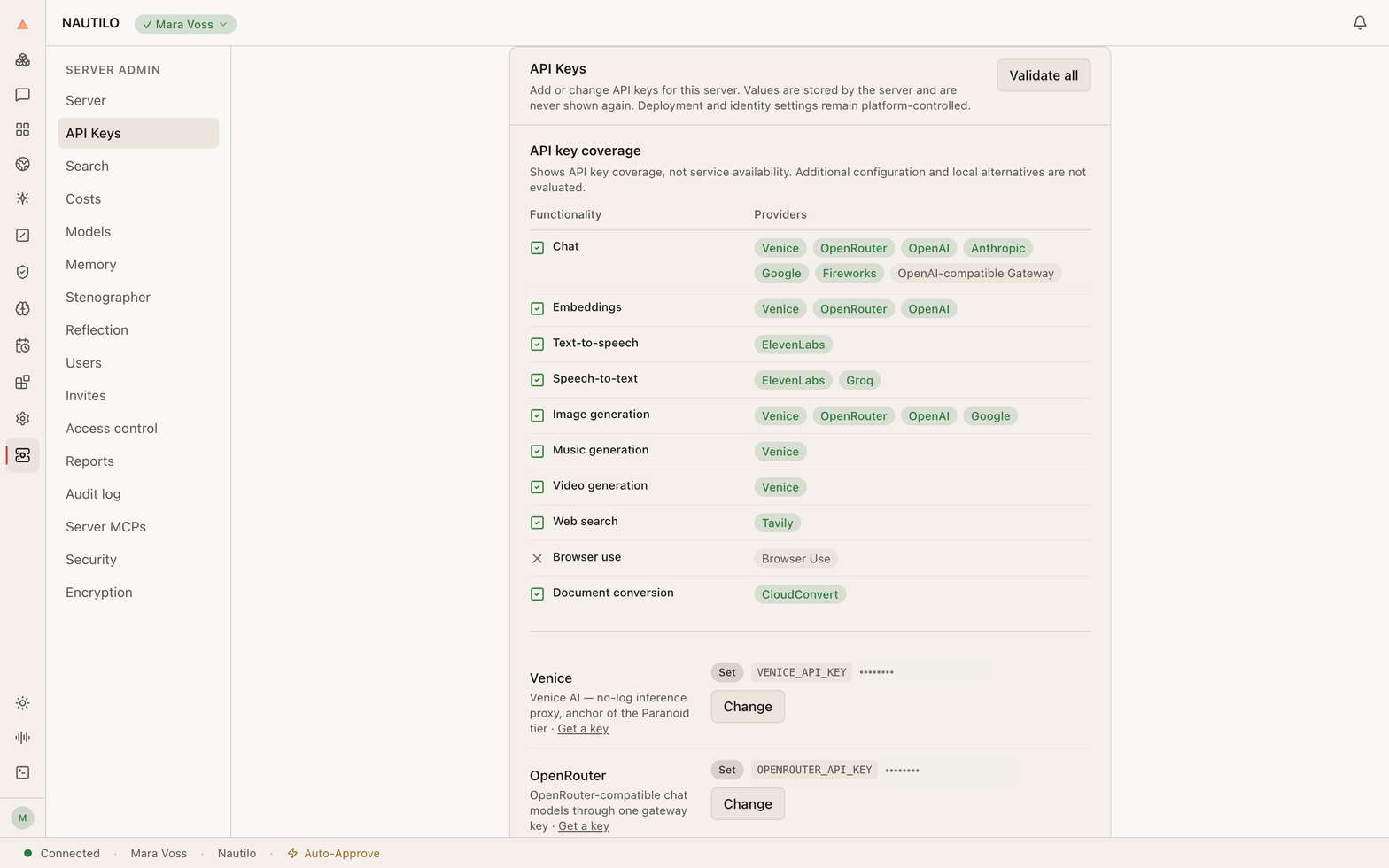
If the section is missing, check that you have Owner or Admin access. On a managed Nautilo Cloud Server, provider credentials are controlled by the hosting service rather than this self-hosted editor. Older releases may show Provider credentials or Settings → API keys instead.
Do not include a key in a support screenshot. Close the input first and capture only the provider name and status. Keep your password-manager copy: Nautilo does not show the full saved key again.
Which keys should I get?
Bare minimum to try model-backed features: one key — Venice, OpenRouter, or OpenAI. Each provides routes for chat, embeddings (used by memory), and image generation. You do not need all three. Installing and claiming the Server itself requires no provider key.
Recommended set for all ten functions below: five keys — Venice, ElevenLabs, Tavily, Browser Use, and CloudConvert. Venice covers chat, embeddings, images, music, and video; ElevenLabs adds text-to-speech and speech-to-text. The other three cover search, browser tasks, and document conversion respectively.
These are key requirements, not a guarantee that every request will succeed. Your provider account needs credit and access to the selected model; Nautilo permissions, approvals, and any additional service configuration still apply. Add other providers when you want their models, not just to finish setup.
Functionality and provider options
| Functionality | Supported API-key providers |
|---|---|
| Chat | Venice, OpenRouter, OpenAI, Anthropic, Google, Fireworks, OpenAI-compatible Gateway |
| Embeddings | Venice, OpenRouter, OpenAI |
| Text-to-speech | ElevenLabs |
| Speech-to-text | ElevenLabs, Groq |
| Image generation | Venice, OpenRouter, OpenAI, Google |
| Music generation | Venice |
| Video generation | Venice |
| Web search | Tavily |
| Browser use | Browser Use |
| Document conversion | CloudConvert |
The API key coverage card in Server admin → API Keys and at the bottom of the Server Guide shows this same mapping. A green check and highlighted provider mean a supporting key is Set or Verified; a grey cross means no supporting key has either status. Keys marked invalid do not count toward coverage. The card does not test service availability, account credit, or local alternatives. Save a key before expecting the card to change.
If your Server does not show the coverage card or media-model selectors, follow the upgrade guide.
Where to get keys
| Service | What it adds | Get a key |
|---|---|---|
| Venice | Chat, embeddings, image, music, and video generation | Venice API settings |
| OpenRouter | Chat, embeddings, and image generation through multiple model providers | OpenRouter API keys |
| ElevenLabs | Text-to-speech and speech-to-text | ElevenLabs API keys |
| OpenAI | Direct GPT access, embeddings, and image generation | OpenAI API keys |
| Anthropic | Direct Claude model access | Anthropic API keys |
| Gemini chat and image generation | Google AI Studio API keys | |
| Fireworks | Chat models | Fireworks API keys |
| Groq | Speech-to-text | Groq API keys |
| Browser Use | Cloud browser automation and protected website sign-in | Browser Use API keys |
| Tavily | Dedicated web search for research | Tavily dashboard |
| CloudConvert | Additional document and file-conversion formats | CloudConvert API keys |
Tavily and Browser Use do different jobs: one does not replace the other. CloudConvert extends file conversion; it is not needed for every local conversion. The table describes Nautilo's integrations, not everything a provider may offer independently.
Restrict an ElevenLabs key
ElevenLabs creates restricted keys by default. Open Developers → API Keys in ElevenLabs, create a key or open an existing key's More Actions (… ) → Edit menu, and keep Restrict Key enabled. For all ElevenLabs features that Nautilo supports, enable these four permissions:
| ElevenLabs permission | Why Nautilo needs it |
|---|---|
Models: Read (models_read) | Reads the model and language metadata used to build the compatible voice catalogue. |
Voices: Read (voices_read) | Lists voices available to the account and verifies the key from Nautilo's API Keys page. |
Text to Speech (text_to_speech) | Generates voice previews and spoken Genie responses. |
Speech to Text (speech_to_text) | Transcribes audio and video attachments with ElevenLabs. |
If you do not want ElevenLabs transcription, you can omit Speech to Text and use Groq for that function. The other three permissions are the minimum for Nautilo's complete ElevenLabs voice-output experience. Nautilo does not need ElevenLabs voice-write or model-write access.
Do not treat a partial voice catalogue as proof that the key has every needed permission. ElevenLabs exposes its shared voice library separately, while Nautilo also reads model metadata and the account's voices. A key without Models: Read can therefore reach shared voices but still fail to load the usable catalogue. Add the missing permission, save the key in ElevenLabs, then return to Server admin → API Keys and choose Validate all again.
ElevenLabs also lets you add a credit quota and an IP allowlist to a key. Keep the quota high enough for previews and speech generation, and include the Server's outbound IP addresses if you use an allowlist. See ElevenLabs' API-key guidance for those controls and its references for text-to-speech and speech-to-text.
The templates also include optional Google, Fireworks, Groq, and OpenAI-compatible gateway keys. A custom gateway needs its URL configured separately; a key alone cannot identify your gateway. A gateway is a custom chat endpoint, not a service for which Nautilo can provide a signup link.
Choose the models used by your Server
After saving keys, open Server admin → Models (/admin#models on your
Server). Choose the embeddings model and the Image, Music, and
Video generation defaults, then choose Save changes. These settings
are separate from the chat model you choose for a Genie or conversation.
Choose Automatic for the simplest setup. Server configuration instead inherits the operator setting, including an existing image-model override. Automatic embeddings prefer Venice, then OpenRouter, then OpenAI. Automatic image selection prefers a usable Venice model, then OpenRouter, OpenAI, and Google. Music and video currently use supported Venice models. The selectors use Nautilo's model catalogue filtered to implemented integrations and configured credentials; a provider's entire catalogue is not necessarily available for every function.
An explicit media selection stays selected rather than silently switching providers if its key or model becomes unavailable. Change it to a usable model or back to Automatic to recover. A model explicitly requested by a task takes precedence over the server default; already approved or queued media requests keep their quoted model.
Fill in the local setup file
Use the current signed stable CLI from the Administrator quickstart with this template. For the manual path, use browser claim and add keys in the app.
Use this file only for the automated Local / Docker Compose setup path. It creates the first owner as well as supplying API keys. For manual browser claim, skip the file and add keys after setup. For an existing Server, use the same API Keys screen to change keys.
Optional: Download the Local / Docker Compose TOML.
-
Download the Local / Docker Compose TOML above.
-
Before adding secrets, move it to a private folder and restrict access:
install -d -m 700 "$HOME/.config/nautilo" install -m 600 "$HOME/Downloads/deploy.toml" "$HOME/.config/nautilo/deploy.toml" open -e "$HOME/.config/nautilo/deploy.toml" -
Replace the owner handle, display name, password, and PIN placeholders. Use a unique password of at least eight characters and a separate 6–8 digit PIN. Save both in your password manager. The password is your permanent login, not a temporary setup password.
-
The template enables Venice only. Keep it for a one-key start, or disable it and enable OpenRouter or OpenAI instead. For the recommended five-key set, keep Venice and enable ElevenLabs, Tavily, Browser Use, and CloudConvert. Replace each enabled
REPLACE_with_..._keyvalue with that service's API key. Keep the surrounding quotes. To enable an optional provider, remove#from all three lines of its block. Delete the entire block for any provider you do not want. Do not leave an enabled value blank or unchanged. -
Save the file, then use the automated local deploy command or Docker Compose command. Both explicitly pass
--owner-mode config,--owner-config, and--owner-result. Preparing a file is not a reason to omit those flags.
Use a plain-text editor, not a word processor that changes straight quotes
into curly ones. Advanced setups can use { fromEnv = "OPENAI_API_KEY" }
instead of an inline value when a password manager supplies that environment
variable. Do not put secret values in terminal commands.
Fill in the Railway provider file
Optional: Download the Railway TOML.
-
Download the Railway TOML above.
-
Install a private copy before pasting keys:
install -d -m 700 "$HOME/.config/nautilo" install -m 600 "$HOME/Downloads/providers.toml" "$HOME/.config/nautilo/providers.toml" open -e "$HOME/.config/nautilo/providers.toml" -
The template enables Venice only. For a one-key alternative, disable it and enable OpenRouter or OpenAI. For the recommended five-key set, keep Venice and enable ElevenLabs, Tavily, Browser Use, and CloudConvert. Replace the values on the enabled provider lines. Remove
#from an optional provider line to enable it. Delete lines you do not need. -
Save the file and pass it to the Railway adoption command. For the CLI-only deployment route, pass the same file with
--provider-configand--all-providersto host plan and deploy.
This file contains service keys only. Create your owner password and PIN in the browser during Railway setup. Do not upload the file into the Railway dashboard or put it in a repository.