
Connect GitHub CLI
Use the GitHub account on your Mac to work with repositories, issues, and pull requests through your Genie.
Connect GitHub CLI so your Genie can work with GitHub using the gh tools
installed on your Mac. It can inspect issues and pull requests, use the GitHub
API, and work with Git and local repositories within the access you grant.
This guide covers Nautilo Desktop on macOS and the github.com sign-in offered by its connection card.
Install and connect
- Install the official GitHub CLI on the Mac
running Nautilo Desktop. If you already use
ghthere, keep that installation. - In Nautilo, open Connections → Computer Use → GitHub CLI.
- Choose Refresh. If the card already says Signed in, check that it shows the account you intend to use. You do not need to sign in again.
- Otherwise choose Sign in to GitHub. GitHub opens in your browser and Nautilo displays a one-time code. Enter it on GitHub's device sign-in page; Copy code and Open GitHub are available if needed.
- Finish GitHub's authorization, return to Nautilo, and look for Signed in. Choose Refresh if the card has not updated.
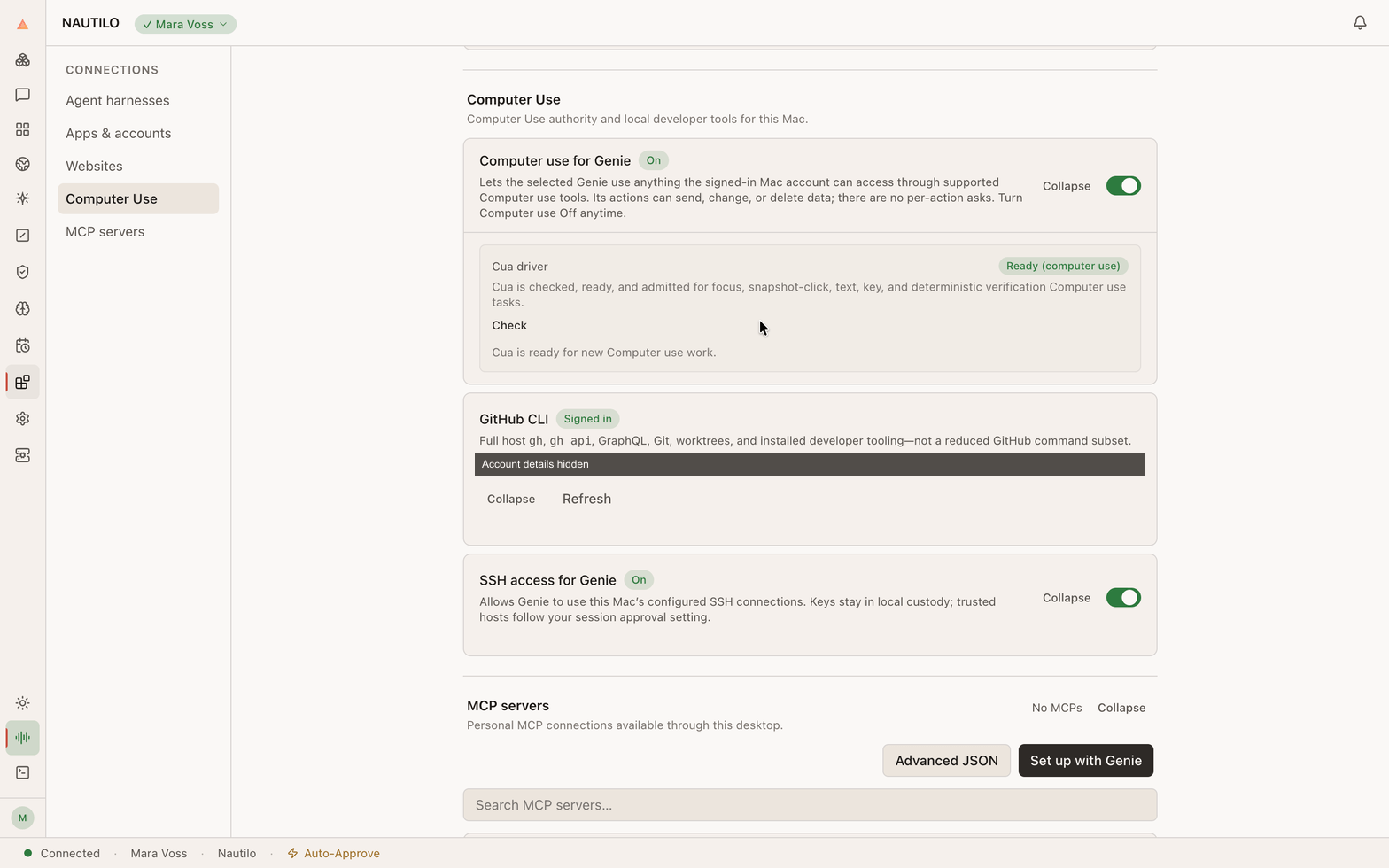
The Signed in badge confirms GitHub CLI authentication. Account details are hidden in this screenshot.
Nautilo uses the host's normal GitHub CLI configuration. This is the GitHub
account used by gh on that Mac, so changing it also affects other work that
uses the same CLI configuration. Nautilo's built-in sign-in selects HTTPS for
Git; it does not configure SSH keys for you.
Try it with your Genie
Keep Nautilo Desktop connected and make sure Computer Use is available to your Genie. In a private conversation, name a repository you can access:
Use GitHub CLI on my Mac to list the open pull requests in example-org/sample-app. Summarize their titles and review status. Don't change anything.
Replace example-org/sample-app with your repository. You are done when the
Genie returns its actual pull requests. Later you can ask for changes, such
as creating an issue or preparing a pull request, and specify the outcome you want.
The Signed in badge confirms authentication. Access to a particular repository still depends on your GitHub account and organization permissions.
Fix a connection
| What you see | What to do |
|---|---|
| gh not installed | Install GitHub CLI on this Mac, then choose Refresh. Installing it on the Nautilo Server will not fix this card. |
| Signed out | Choose Sign in to GitHub and finish the browser flow. |
| Sign-in page closed | Use Open GitHub while the sign-in is pending. If the code expires, start a fresh sign-in after the previous attempt ends. |
| Wrong account | Use gh auth switch in your Mac's terminal, or sign in to the intended account there, then Refresh in Nautilo. |
| Signed in, but a repository is inaccessible | Check the repository name and your account's access, including any organization authorization required by GitHub. |
For CLI-side diagnosis, use gh auth status --hostname github.com.
To sign out, use gh auth logout --hostname github.com, then refresh Nautilo.
These commands affect the host CLI's login. See the
GitHub CLI manual for its
authentication options.
Do not paste access tokens, passwords, or one-time sign-in codes into a Genie conversation. If you share a screenshot for support, remove your GitHub handle, private repository names, and any active sign-in code.
Need remote shell access as well? See SSH access for Genie.