
Enable SSH access for Genie
Let your Genie use SSH connections configured on your Mac while keeping private keys on the device.
Your Genie can run commands and transfer files over SSH using connections already configured on your Mac. Enable that access in Nautilo Desktop; private keys stay in local custody.
This is for using a remote machine with your Genie. If you are installing a Nautilo Server on a remote host, use the Linux Server deployment guide.
Before you begin
Have a working SSH connection on the Mac running Nautilo Desktop, with the
right remote account and local key or authentication setup. Use a recognizable
host alias, such as demo-server, so you can name the destination clearly.
If the connection is new, have the remote machine's administrator provide its host-key fingerprint through a trusted channel. Do not send your private key, passphrase, or Nautilo PIN to your Genie.
Turn on SSH access
- Open Connections → Computer Use.
- Find SSH access for Genie and turn on its switch.
- Enter your own Nautilo PIN in the Turn on SSH access dialog. This authorizes the capability; it is not your remote server's password.
- Confirm that the card now says On.
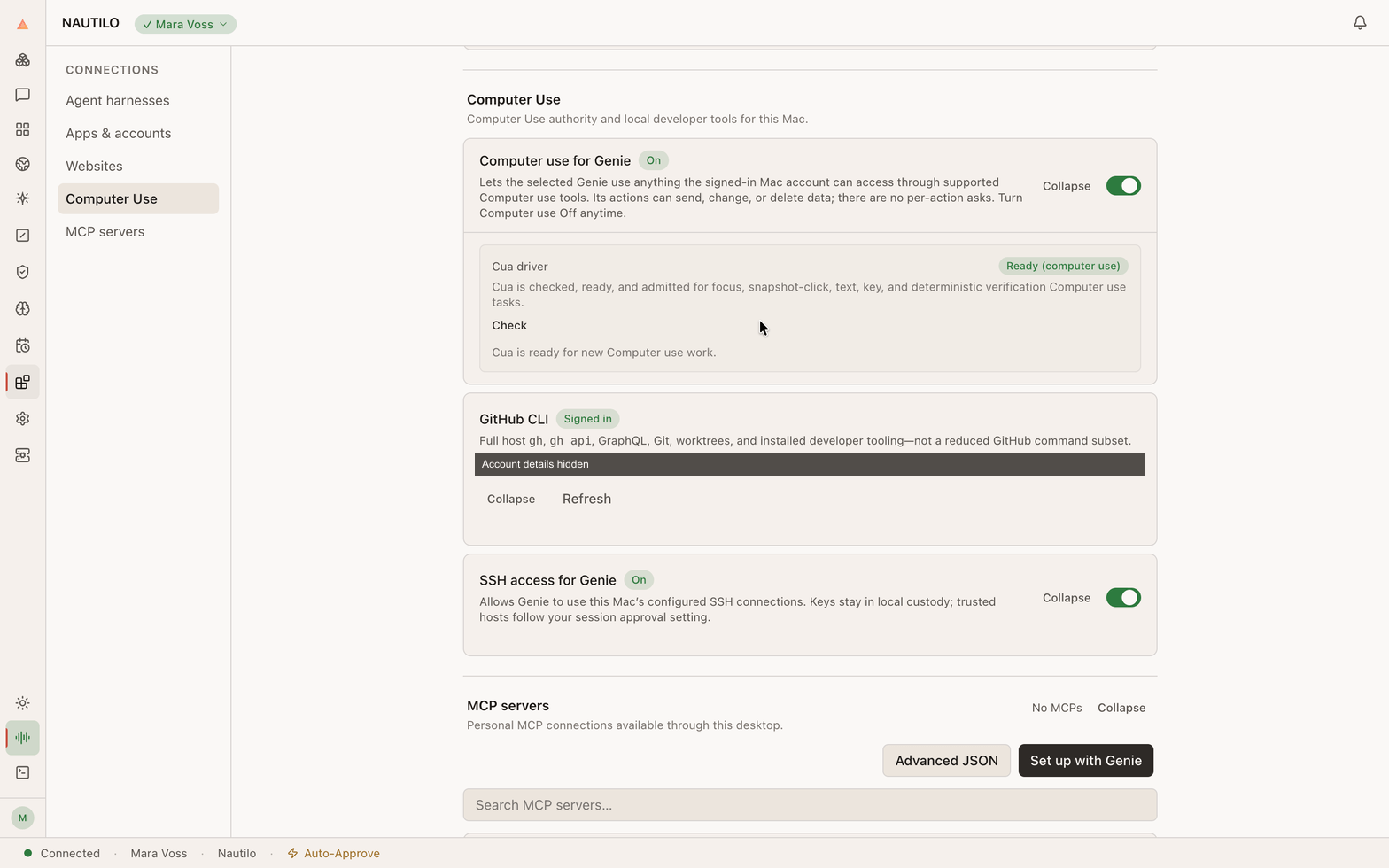
The On badge confirms SSH access is enabled. Account details elsewhere on the screen are hidden.
Keep this Desktop connected to your Nautilo Server while the Genie uses its SSH connections. The switch does not create a remote account or install a key on a server.
Ask for a first check
In a private conversation with your own Genie, name the configured host and a
small, clear job. Replace demo-server with your host alias:
Use SSH to connect to demo-server and report its uptime and free disk space. Don't change anything.
If Nautilo asks you to confirm a new or changed host identity, compare the fingerprint with the one you obtained independently. New or changed host trust requires you; the Genie cannot make that decision for you. Follow any local authentication prompt on your Mac.
For trusted hosts, actions follow your session approval setting. Review the returned command output to confirm the check completed. The On badge enables the capability; it does not prove every destination is reachable.
Commands and file transfers
Once connected, you can ask for remote commands, uploads, or downloads. Name the destination and exact files, and make clear whether you want inspection or changes. For example:
Download /srv/demo/reports/weekly.txt from demo-server into my project folder.
Remote commands run with the permissions of the SSH account. Command output and files brought back into Nautilo can become part of the conversation, so use a private conversation for private machine data.
Turn it off or fix a problem
Turn off SSH access for Genie in the same card to disable the managed SSH capability for this Desktop session. Your Mac's SSH configuration and keys remain in place. Other separately granted access, such as general shell access, has its own controls.
| Problem | What to check |
|---|---|
| Unavailable | Use Nautilo Desktop on your Mac, reconnect it, and check the reason shown in the card. Update Desktop if its SSH support is missing. |
| PIN rejected | Enter the PIN for the Human signed into Nautilo, not a server password or another person's PIN. |
| Host cannot be found or reached | Check the host alias, network or VPN, and SSH access from this same Mac. |
| Authentication required | Complete the local authentication step; keep secrets out of the conversation. |
| Host key changed | Verify the change with the machine's administrator before accepting it. |
| Permission denied after connecting | Check the remote account's access to the requested command or path. Turning on SSH does not grant administrator privileges. |
For repository work, you may also want GitHub CLI and an agent harness.