
Work with numbers in Sheets
Build a budget, inspect the formulas, and work through the numbers with your Genie.
Sheets puts the spreadsheet and the conversation in the same place. Let your Genie build a first pass, then inspect the numbers and adjust the sheet yourself.
Create a spreadsheet
- Open Apps → Sheets and choose New spreadsheet.
- Choose Workspace, enter a name, and choose Create.
- Close the Apps panel for a wider sheet.
Tell your Genie what you are trying to calculate:
We have €180 for a workshop with six people. Make a budget for paper, wire, clay, fabric, printing, tea, and snacks. Show quantities, unit prices, line totals, the cost per person, and what's left.
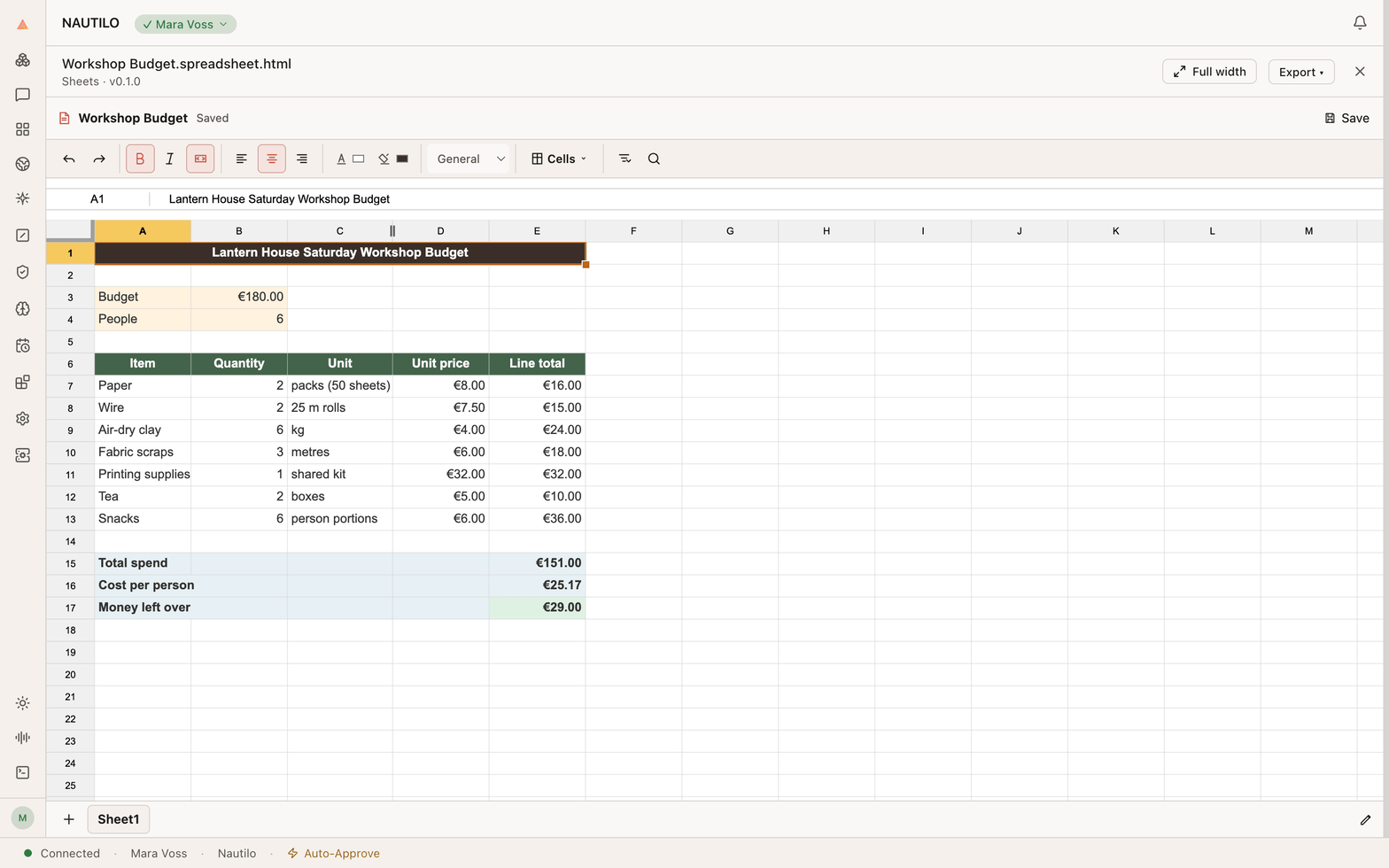
Check the calculation
Select a total cell and read its formula in the formula bar. In this
example, the total is =SUM(E7:E13): it adds the seven cost lines.
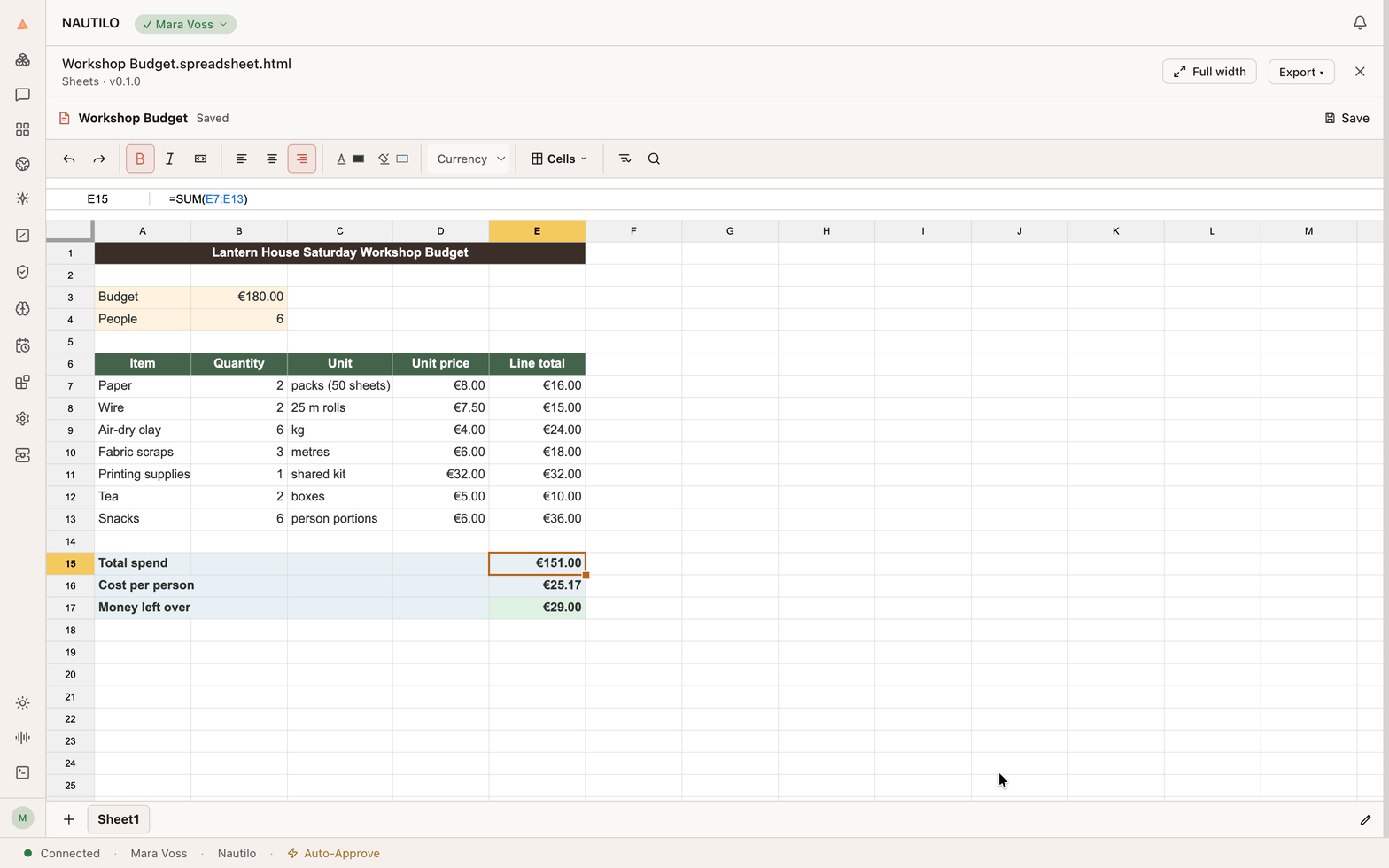
The example totals €151, or €25.17 per person after rounding, leaving €29. Ask your Genie to explain a formula or change an assumption, then check the resulting cells.
Make your own adjustments
Edit the sheet directly when you know what you want. Double-click a column header's boundary to fit the column to its contents. Choose Save spreadsheet and wait for Saved before closing.
If the sheet reports conflicting changes, decide which version to keep before continuing. Discard local edits and reload replaces your unsaved changes with the saved version; use it only when that is what you want.
Turn the plan into a short presentation in Slides.