
Plan together on a Board
Turn a conversation into a visual plan you can keep working on.
A Board gives your ideas somewhere to live outside the chat. Use it to group possibilities, lay out a plan, or make the next step easier to see.
Start a board
- Open Apps and choose Board.
- Choose New board.
- Select Workspace, give the board a name, and choose Create.
- Close the Apps panel to give the canvas more room. Keep your Genie beside it when you want to work together.
Give your Genie something concrete to work with
Describe the purpose and the shape of the board. For example:
We're planning a Saturday workshop for six people. Make three groups: things to make, things to learn, and things to share. Give us three inviting ideas in each group.
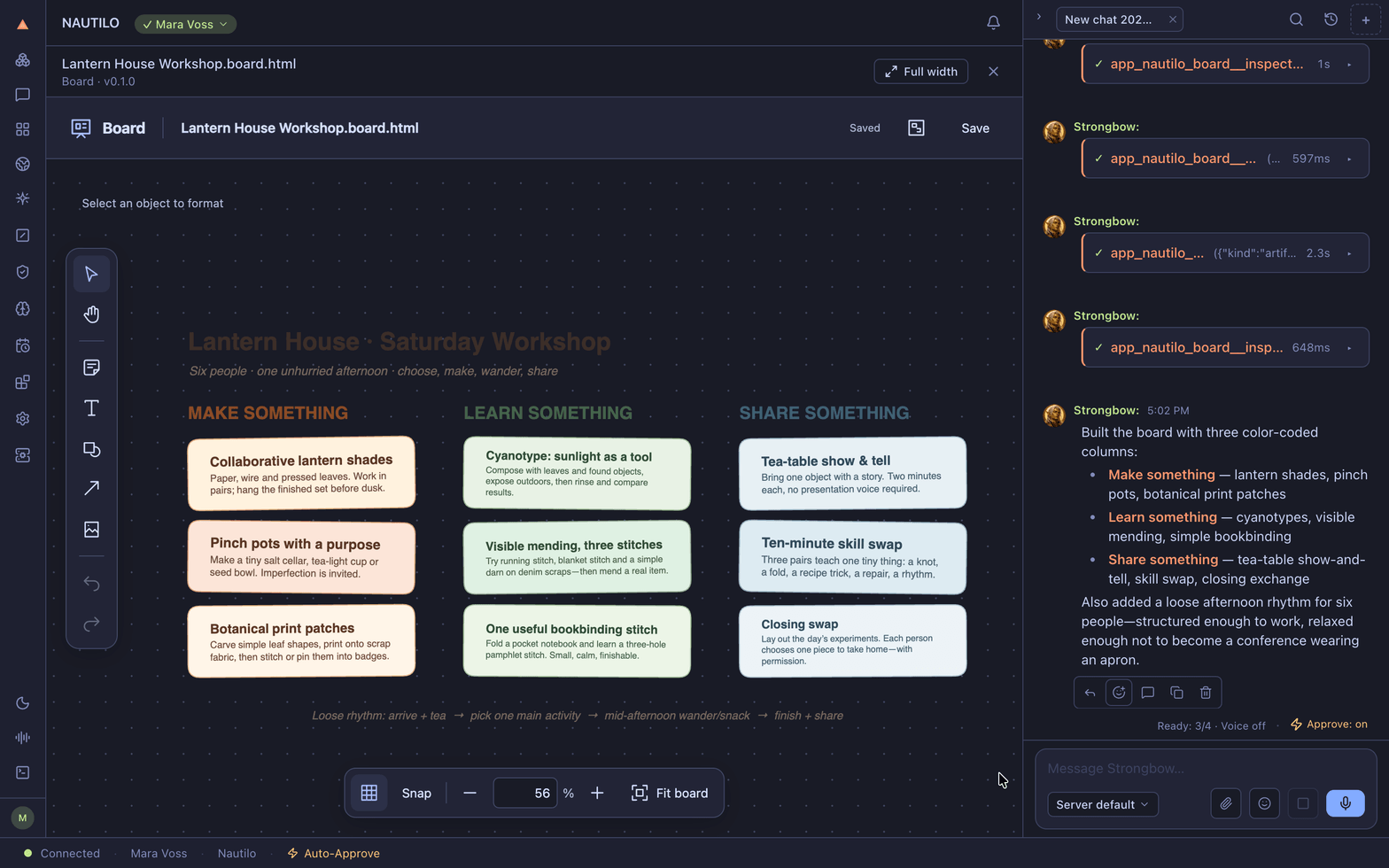
Use the zoom controls to make the board comfortable to read. You can keep the conversation open beside the canvas without squeezing in the Apps panel.
Come back to the same board
Wait for the saved status before closing. Open the existing board from Artifacts → Workspace when you want to continue; there is no need to ask your Genie to create it again.
If a saved change has not appeared on the canvas, close and reopen that board before trying the change again. Keep any unsaved work first.
For numbers behind the plan, make a budget in Sheets. For a visual invitation, open Design.