
Make something in Design
Create an editable invitation or layout with your Genie beside the canvas.
Design gives you a canvas for work that needs a visual shape. Start with a purpose, a few constraints, and the words that matter.
Create a design
- Open Apps → Nautilo Design and choose New design.
- Select Workspace, give it a name, and choose Create.
- Close the Apps panel so the canvas has room.
Try a brief like this:
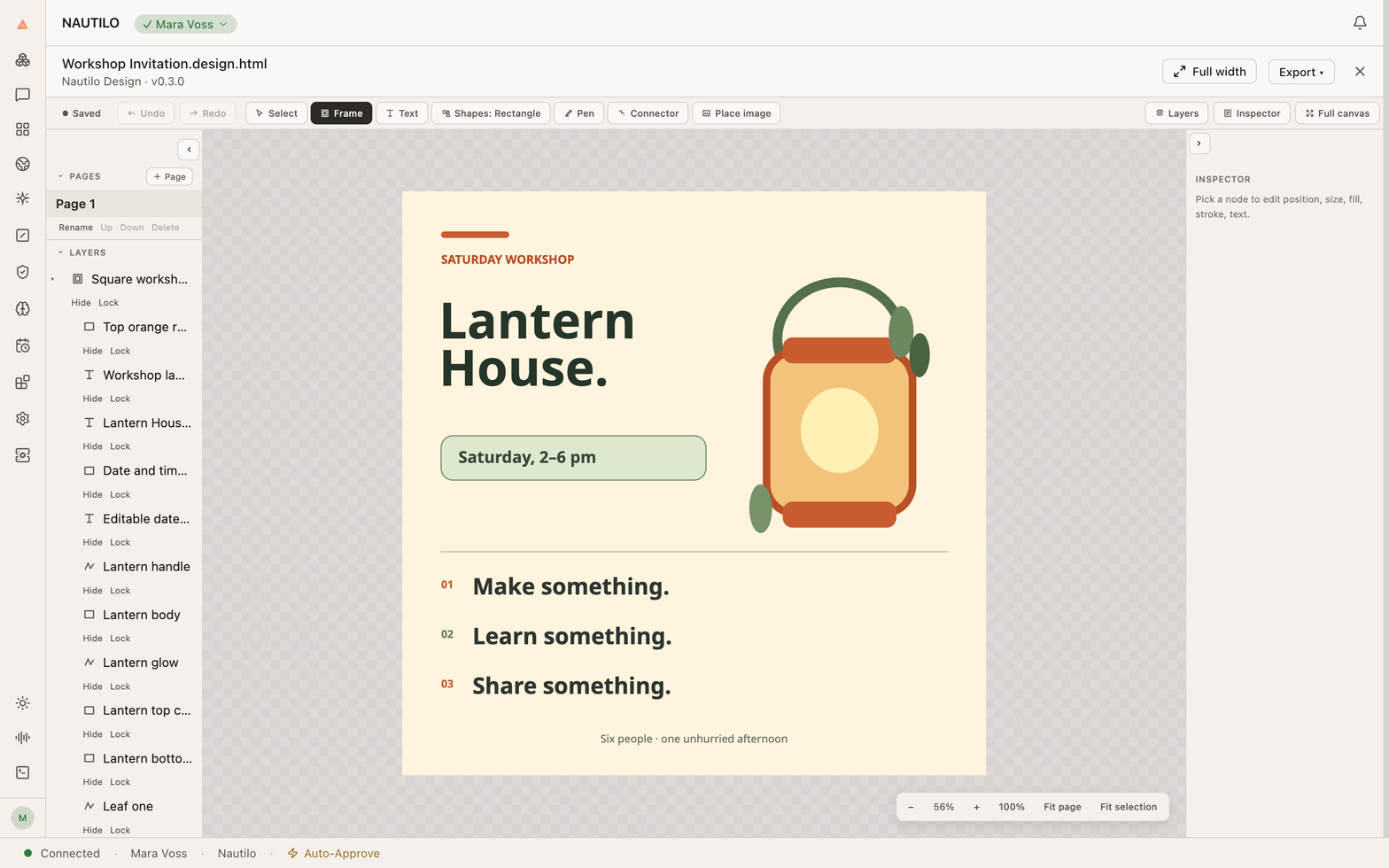
Make a square invitation for Lantern House's Saturday workshop, from 2 to 6 pm. Use cream, orange, and green, with a simple lantern made from shapes. Keep the text editable.
Work beside the canvas
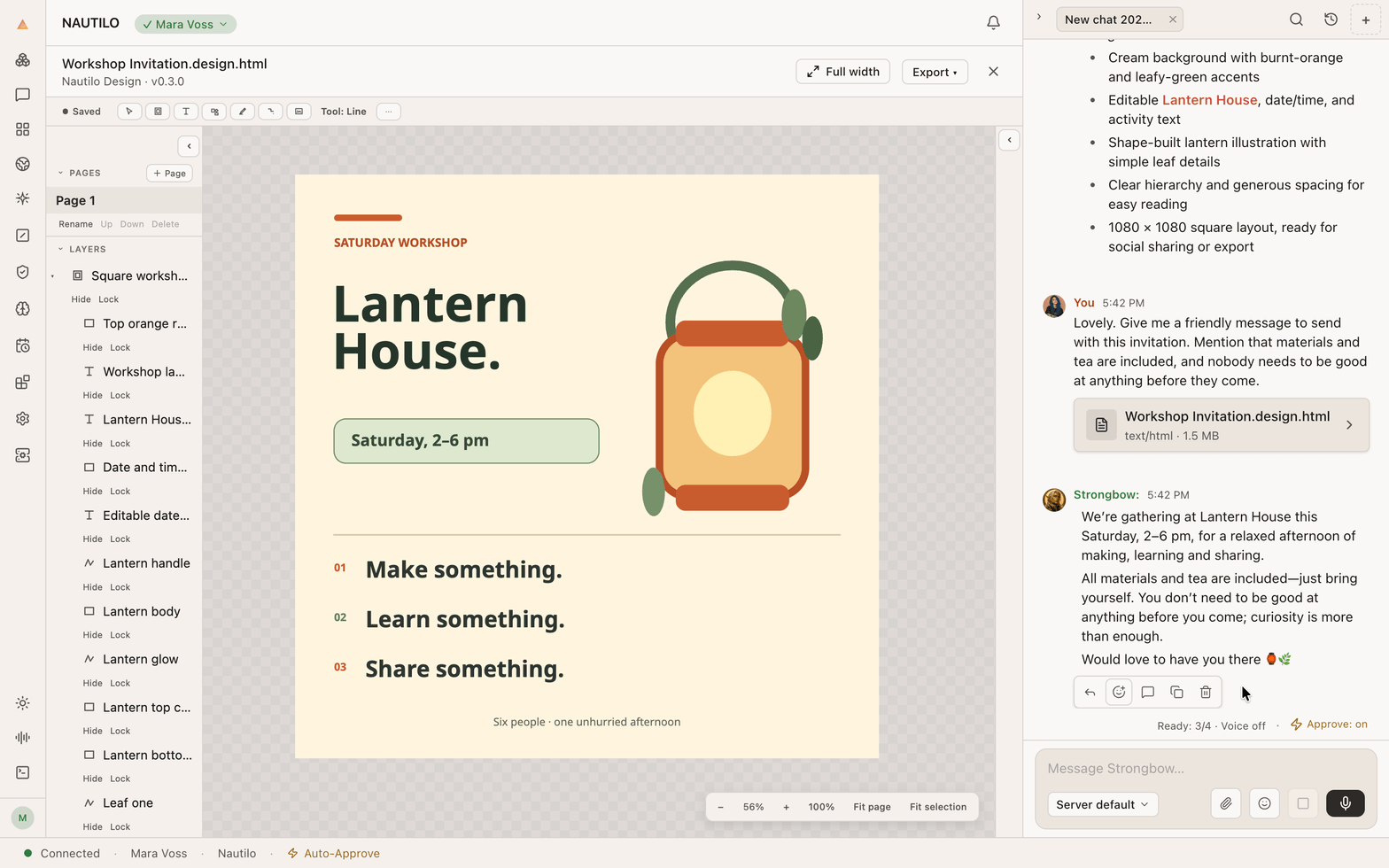
Use Fit page to see the whole design. The layers panel shows the elements that make up the invitation; the inspector sits on the other side. Keep the Genie conversation open when you want to discuss a change.
Be specific about what should stay when you request an edit:
Keep the colors and the lantern. Make the time easier to spot, and give the headline a little more breathing room.
Wait for Saved before closing, then reopen the existing design from Artifacts → Workspace to continue.
For a longer story, make a deck in Slides.